How do I move/add a member to another team?

Can you be on more than one team?

- There is no limit to the number of teams you can be in. Neither in the club nor on SportMember in general

Neither in terms of roles (member, coach, assistant, etc.)


- As an administrator you can move or add all members/coaches between all teams


- A coach can not move move members
Det er ikke noe svar på dette spørsmålet knyttet til bruken av SportMember fra appen.

Open Members in the club

  1. Click on  Club on the top left
  2. Click on Members

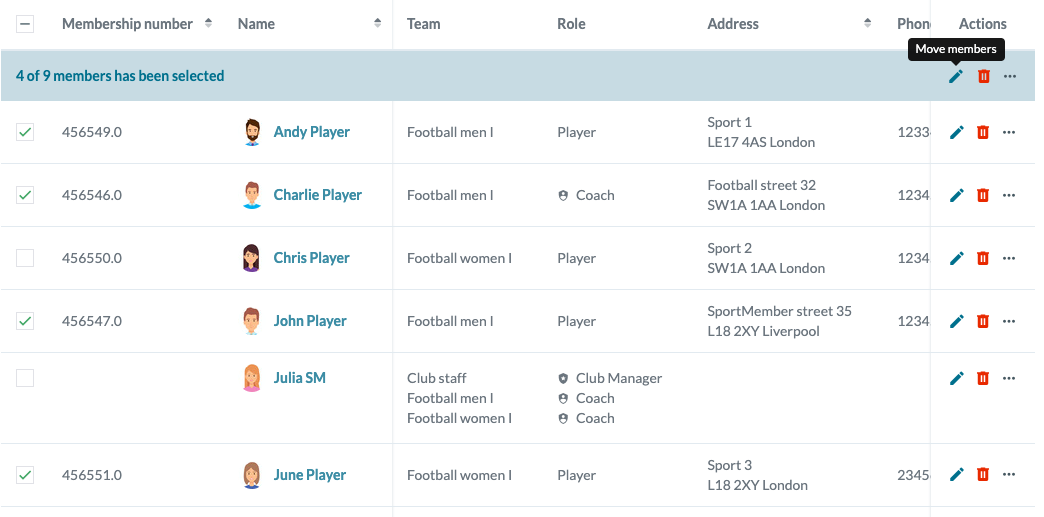
You are now in the club's member list and can choose to move one or more members from one team to another or add to another team, giving the member one more team affiliation.

It is possible to select additional members by clicking in the box to the left of the members in the list. In this way, multiple members can be added to, moved to, or removed from a team (this is explained in more detail below).


Move a member from one team to another

  1. Click on  under "Actions" to the right of the members name that you want to move. 
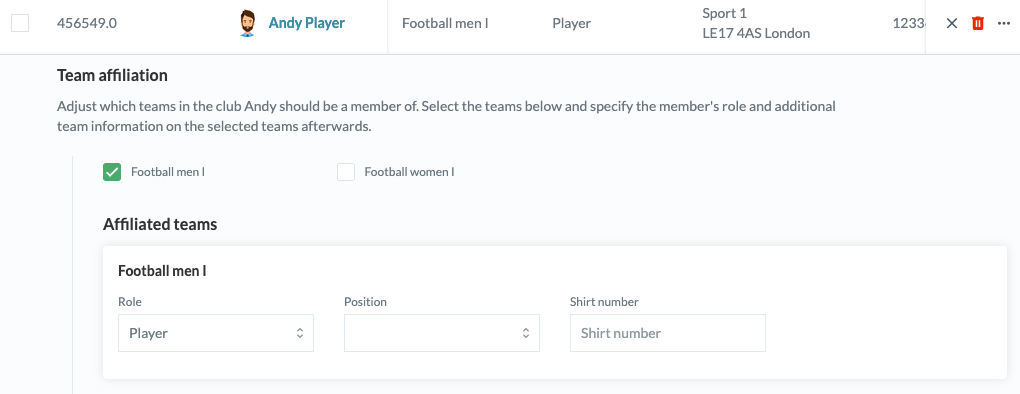
  2. Look for Team affiliation and chose the Team(s) the member should belong to.
  3. In Affiliated teams you can adjust the Role of the member within the team (coach, member, assistant etc.)
  4. Press Save

Example: A player is assigned to one team. Select or deselect the teams you want by clicking the box next to the teams you want. Press the cross at the top right to cancel.


Move multiple members between teams

  1. First, you select the members to be added, moved, or removed from one or more teams.
  2. Click  under "Actions" in the top blue row. 
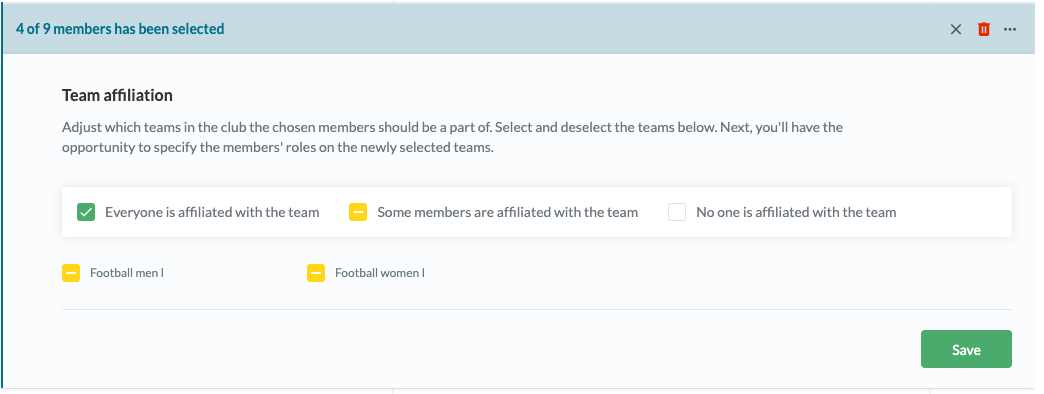
  3. Look for Team affiliation and chose on or more Teams. Please note that this applies to all selected members.
  4. Click Save.

Example: Here you can see the possibilities to add more members. Press the cross in the right corner to cancel.

There are three options for team assignments when moving multiple members. Click several times in the field to add or remove team assignments.

  • TIP: You may want to sort your filter in the member list first so you can move/add/remove an entire team at once. For example, move all members from a U11 team to a U12 team. Here you select the team in the list and then you can check the box to the left of "member no" to select all members of the team.
Var denne artikkelen til hjelp?
2 av 5 synes dette var nyttig

Klar til å komme i gang?

Klubben din på din måte! Administrer klubben din med SportMember og lette arbeidsbelastningen. Vi vil gjerne hjelpe deg i gang. Opprett en konto med en gang.
Hva koster det?
Hvilke behov har klubben din? Basis- eller PRO-abonnement?
Prisdetaljer
Funktionsoversigt
Ingen klubber er like. Våre funksjoner dekker dine behov.
Funktionsoversigt